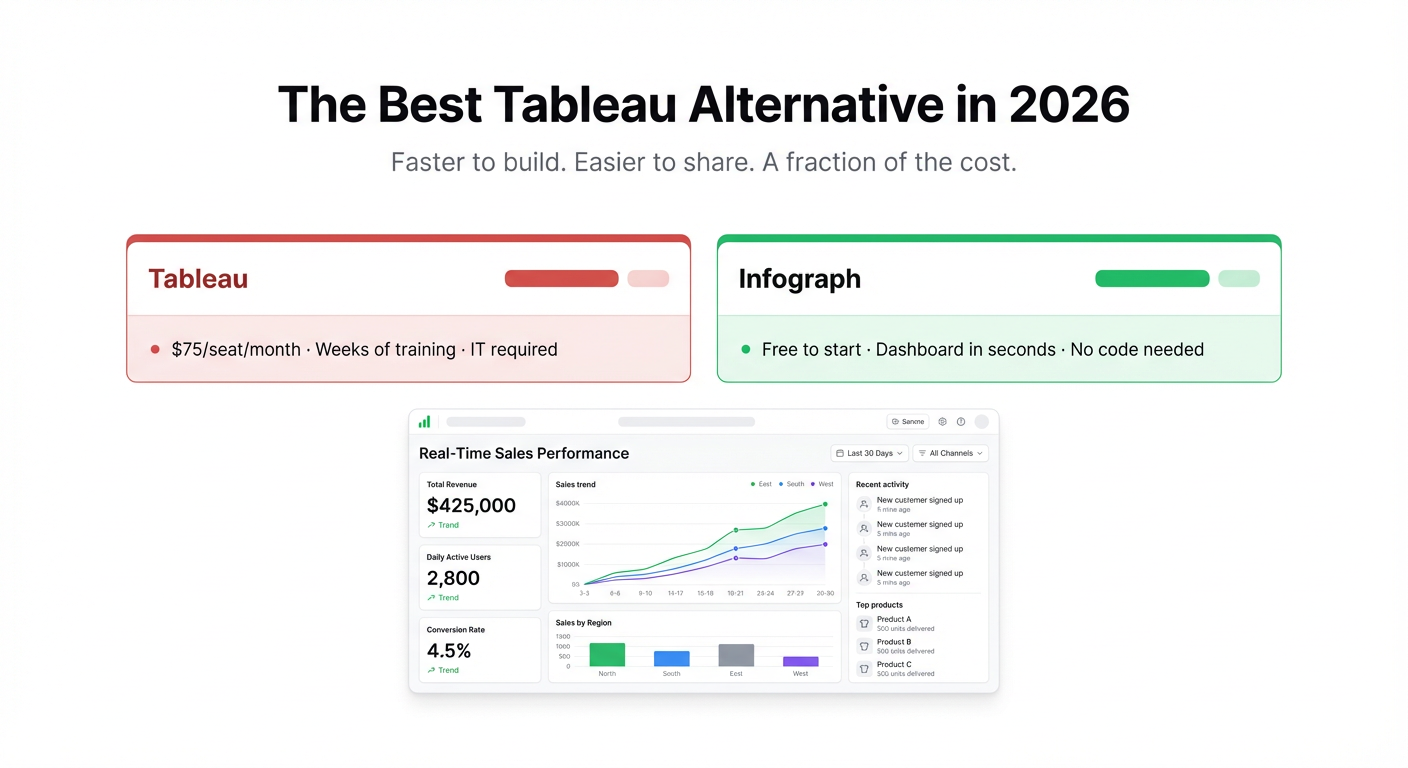
Tableau built its reputation on one thing: it could visualise almost any dataset, almost any way you wanted. For a certain class of data analyst — technical, patient, well-funded — it was transformative.
But Tableau was built for that analyst. Not for the sales director who needs pipeline numbers before the Monday call. Not for the startup founder who doesn’t have a BI team. Not for the operations manager who uploads a CSV and just wants to see what’s going on.
If you’re shopping for a Tableau alternative, you probably already know which camp you’re in.
What Tableau Does Well
Credit where it’s due: Tableau’s visualisation engine is genuinely excellent. Complex multi-dimensional charts, custom calculated fields, geographic mapping, drill-down hierarchies — if you know what you’re doing, Tableau lets you build things you can’t replicate easily elsewhere.
The Tableau Public community is also real. Thousands of published dashboards, tutorials, and templates built up over fifteen-plus years. That’s a legitimate asset.
Where Tableau Falls Short
The list is long, and it starts with price.
Licensing. Tableau Creator — the full-featured plan — runs around $75/month per seat on annual billing. Tableau Viewer (read-only access) is $15/seat/month. For a team of 10 where most people just need to see dashboards, you’re looking at $250–$300/month minimum. That’s before any consulting or training costs.
The learning curve. Tableau has its own logic for data relationships, LOD expressions, blending, and calculated fields. Getting useful things built takes weeks of practice. Getting good at Tableau takes months. The company has an entire certification programme — Tableau Desktop Specialist, Tableau Data Analyst — that people actually spend months studying for. That’s the scale of commitment involved.
No AI generation. You still build every chart by hand. Drag a measure to rows. Drag a dimension to columns. Pick a mark type. Configure the axis. Repeat. There’s no way to say “show me monthly revenue by region with a trend line” and have Tableau figure out the rest. Every element is manual.
It’s designed for analysts, not business users. Tableau assumes the person building dashboards is a different person from the one reading them. Most modern teams don’t work that way. When a product manager wants to explore their own data, they hit a wall.
The Case for an AI-First Alternative
The thing Tableau never had to reckon with — until recently — is that the hardest part of dashboarding isn’t the visualisation engine. It’s the translation layer: getting from “I want to understand my sales performance” to “here’s the chart that shows that.”
Infograph is built around removing that translation step entirely.
You connect your data — upload a CSV, link a Google Sheet, connect Excel Online — and then describe what you want to see. In plain English. “Show me monthly revenue by product line as a bar chart. Add a trend line. Put total Q1 revenue at the top.” Infograph reads your data, maps your column headers to what you described, and builds the dashboard.
No dragging. No calculated fields. No VLOOKUP-equivalent logic to learn. The AI handles the interpretation.
How the Two Tools Compare
Getting started. With Tableau, you install the desktop application, connect your data source, and then spend time learning the interface before you can build anything useful. With Infograph, you’re at a working dashboard in under five minutes — including sign-up.
Time to insight. A moderately complex Tableau dashboard, built by someone competent, might take two to three hours. The same dashboard in Infograph, described in natural language, takes a few minutes. For simple dashboards, seconds.
Sharing. Tableau requires the viewer to have a Tableau account (or you need Tableau Server/Cloud, which adds cost). Infograph lets you share dashboards publicly with a link, password-protect them, or restrict access to your team — on any plan.
Iteration speed. Changing a Tableau dashboard means going back into the editor, modifying the chart configuration, and republishing. Changing an Infograph dashboard means typing what you want instead. “Switch the bar chart to show this year vs last year.” Done.
Price. Infograph’s free tier gives you one dashboard and 500 AI credits, no credit card required. The Pro plan is $19.99/month — for one person, that’s the cost of half a Tableau Viewer seat.
Who Should Still Use Tableau
If you’re a data analyst who needs to build complex, bespoke visualisations for enterprise-level clients — and your company is paying for it — Tableau is still worth knowing. Its ceiling is genuinely high.
If you’re publishing polished public data journalism with sophisticated interactivity, Tableau Public remains a good option.
For everyone else — for the teams where dashboards are a means to an end, not the core product — the cost and complexity doesn’t pay off.
Trying Infograph
The free tier is an honest test. No credit card, no time limit. Connect your data, describe the dashboard you want, and see if the output matches what you had in your head.
Most people find it does — on the first try.
If you’ve been putting off fixing your reporting setup because Tableau felt like too much — too expensive, too technical, too much to learn before you get anything useful — this is the alternative that removes all three objections.
Your data is already waiting. The only thing left is the prompt.


