You’ve built a dashboard for a client. The data is theirs — or at least about them — and you want to share it in a way that feels professional and keeps it out of public view. Emailing a spreadsheet is clunky. Setting them up with an account in another tool is too much friction. Making the dashboard fully public is not an option.
Infograph’s password-protected sharing solves this without any of the overhead.
How It Works
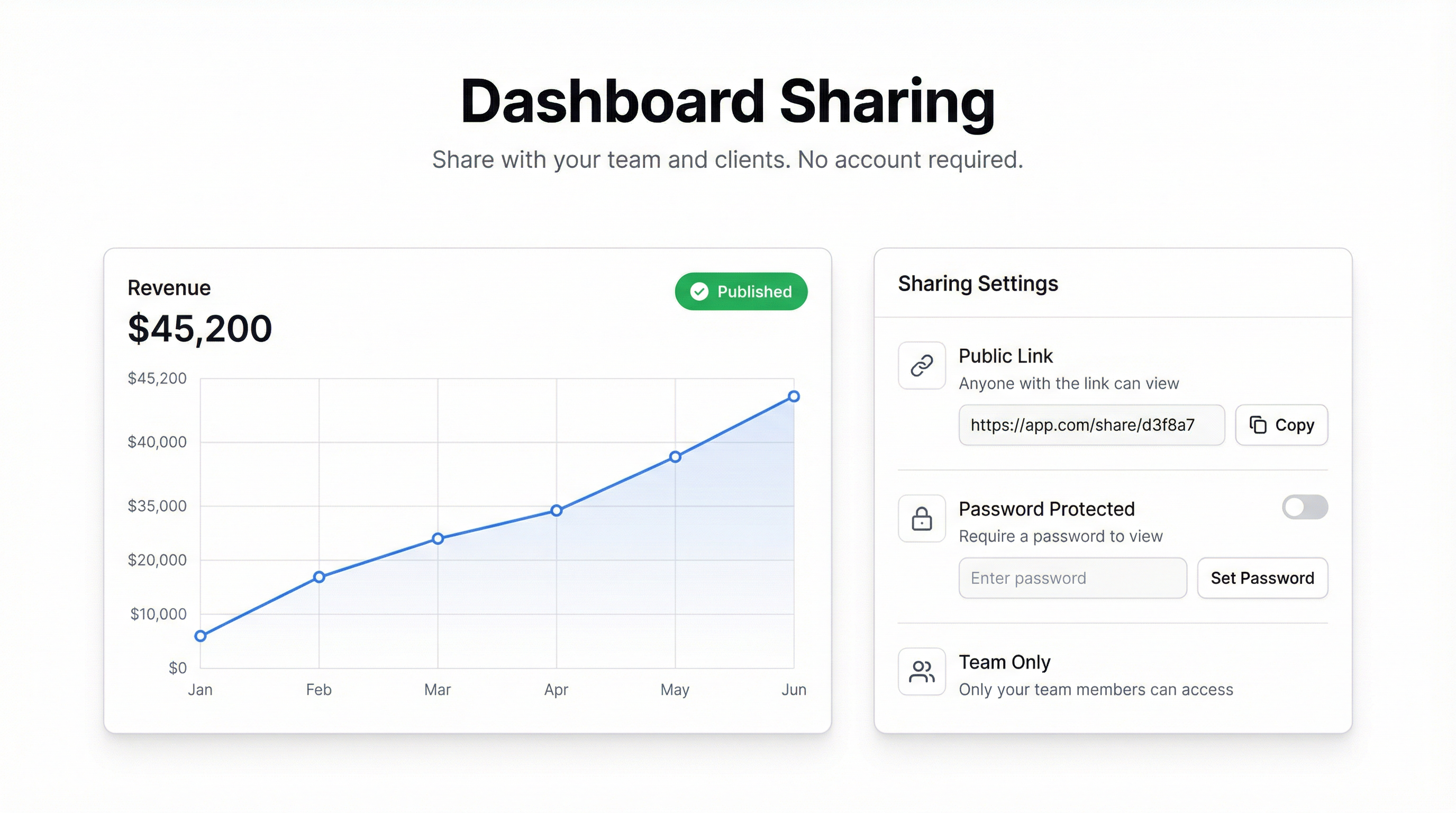
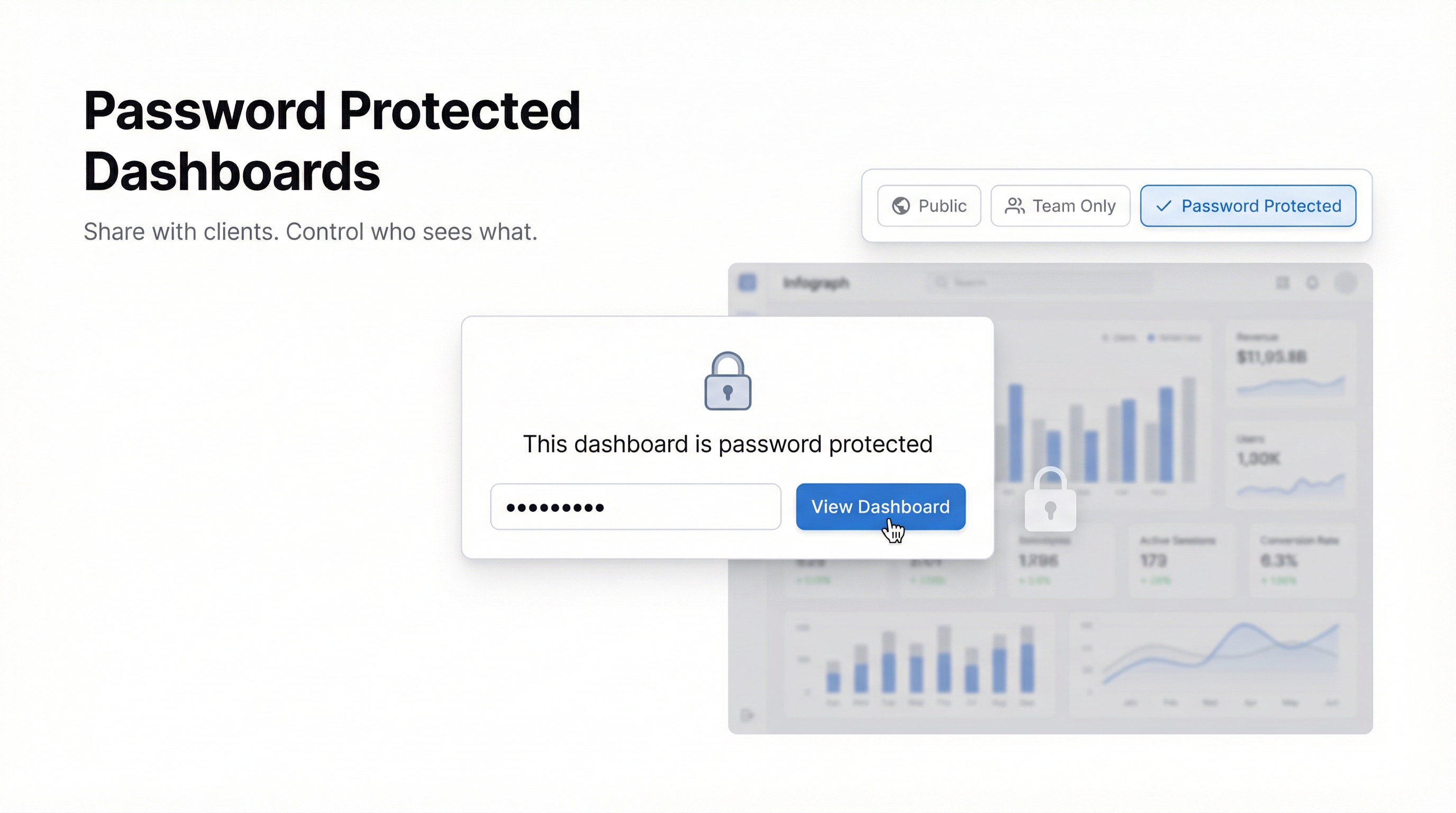
When you publish a dashboard, you choose the access mode. One of the options is “Password Protected.” You set a password — anything you want — and Infograph generates a shareable link.
Anyone who opens that link sees a clean login screen asking for the password. Enter it correctly and the dashboard loads. No account needed. No email verification. Just the password and the data.
You share the link and the password with your client however you normally communicate. They open it on their phone, tablet, or laptop. It works. That’s it.
Who This Is For
Agency and consultancy clients. You build dashboards for clients but don’t want to give them access to your Infograph account. Password-protected links let each client see only their own dashboard, with nothing else accessible.
Board and investor reporting. Sensitive financial dashboards shared with board members who don’t need (and might not want) to create yet another account. The password creates just enough friction to keep things private.
Internal dashboards for non-staff. Contractors, advisors, or external partners who need read-only access to specific data but aren’t part of your team account.
Client-facing demos. Let prospects explore a live dashboard of their own industry data — with a password that expires after the deal closes.
Updating the Password
You can change the password on any protected dashboard at any time. The old link stops working the moment you update it. Useful if a client relationship ends or you want to rotate credentials periodically.
The dashboard itself doesn’t change — just the access credentials. Anyone who had the old password needs the new one.
Live vs. Snapshot Behind the Password
The password-protection layer works with both sharing modes.
A live password-protected dashboard updates when the underlying data source updates. If you’ve connected a Google Sheet or Excel Online workbook, the client sees current numbers every time they open it.
A snapshot password-protected dashboard freezes the visual state at the moment of publishing. The lock icon in the dashboard header makes it clear to viewers that they’re looking at a snapshot.
For client reporting, snapshots are often better — they preserve the numbers from a specific reporting period and prevent confusion if data is retroactively updated.
Setting It Up
- Build your dashboard in Infograph.
- Click “Publish” in the top-right corner.
- Select “Password Protected” as the access mode.
- Set a password and copy the shareable link.
- Send both to your recipient.
They don’t need an Infograph account. They don’t need to install anything. The dashboard loads in any browser, on any device.
What It Doesn’t Do
Password protection is not enterprise-grade access control. It’s a single shared password, not individual credentials. If you share the password with five people and one of them forwards it, you can’t tell who opened the dashboard.
For situations where you need individual audit trails, SSO, or per-user access restrictions, talk to us about enterprise options. For most client-sharing use cases, a shared password is more than sufficient — and it’s dramatically simpler than the alternatives.