You need to open an Excel file. Maybe a coworker sent you a sales report. Maybe you exported a spreadsheet from your accounting software. Maybe someone emailed you a .xlsx and you’re on a machine without Office installed.
Your options? Pay for a Microsoft 365 subscription. Upload to Google Sheets (and send your data to Google). Find one of those sketchy “free Excel viewer” websites that want you to upload your file to their servers. Or give up and ask someone to convert it to PDF.
We built a free Excel viewer and Excel editor that runs entirely in your browser. Drop a file, see your spreadsheet in a clean grid. Multi-sheet support, sorting, filtering, search — and your file never leaves your machine.
What It Does
Excel Viewer
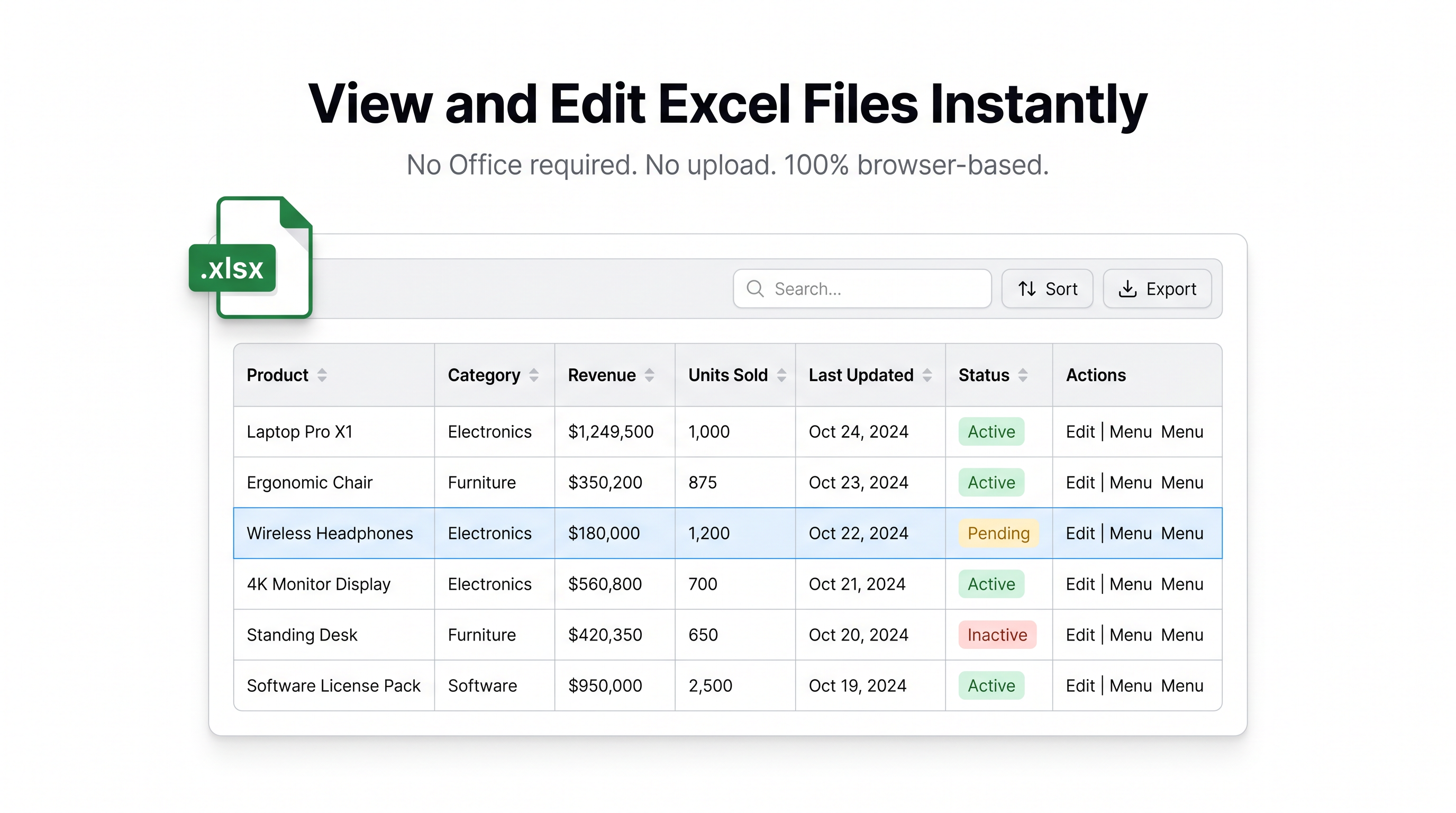
The Excel viewer opens any .xlsx or .xls file and displays it in a sortable, filterable grid.
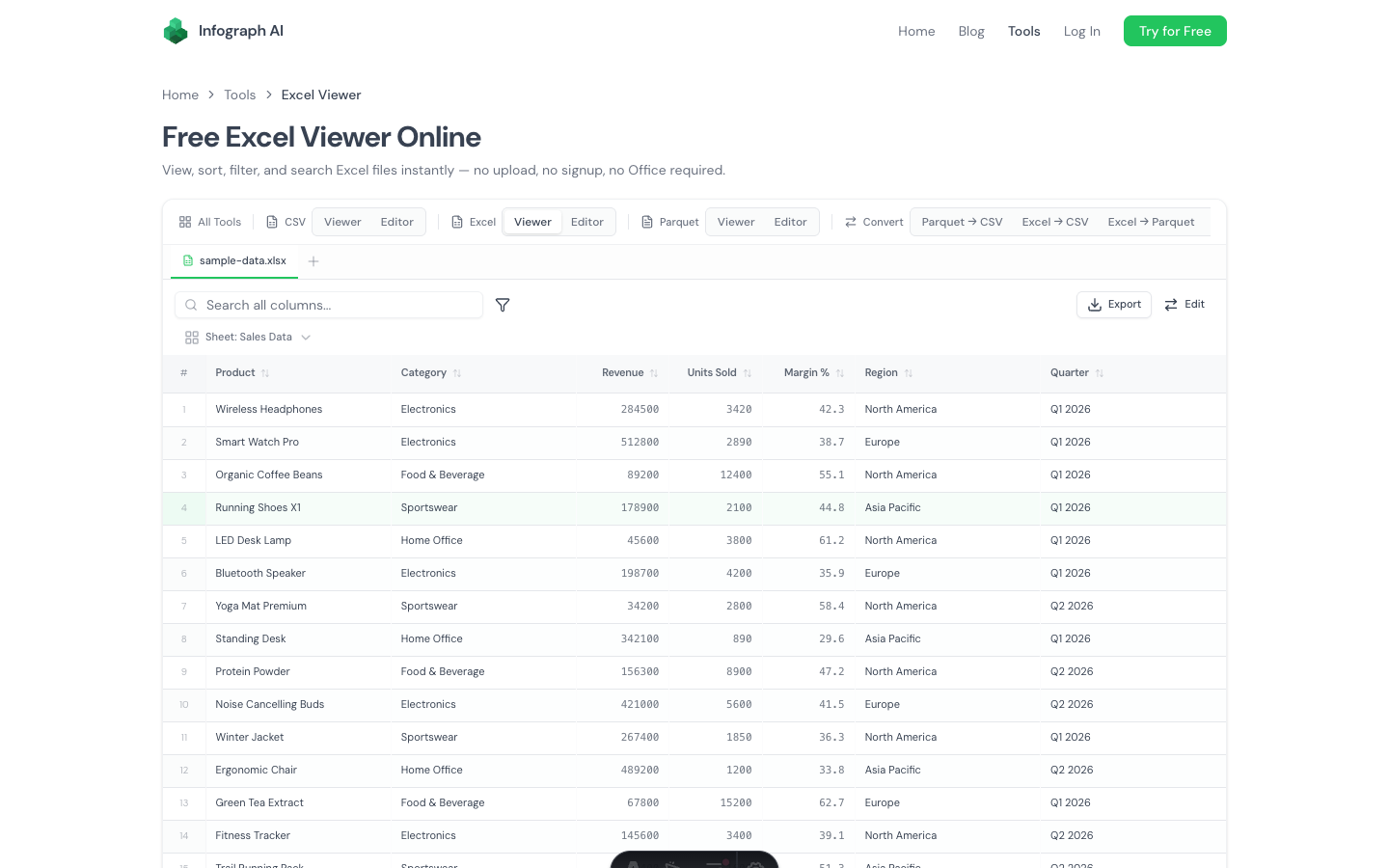
- Multi-sheet support — workbooks with multiple sheets get a dropdown selector. Switch between sheets instantly.
- Column sorting — click any header to sort ascending or descending
- Per-column filters — filter individual columns without formulas
- Global search — search across every column at once
- Auto-detection — handles both
.xlsx(modern) and.xls(legacy) formats - Export — save as CSV, JSON, Parquet, or Excel (.xlsx)
The grid uses virtual scrolling, so it stays smooth even with large spreadsheets. No row limits, no slow loading screens.
Excel Editor
The Excel editor adds editing capabilities on top of everything the viewer does.
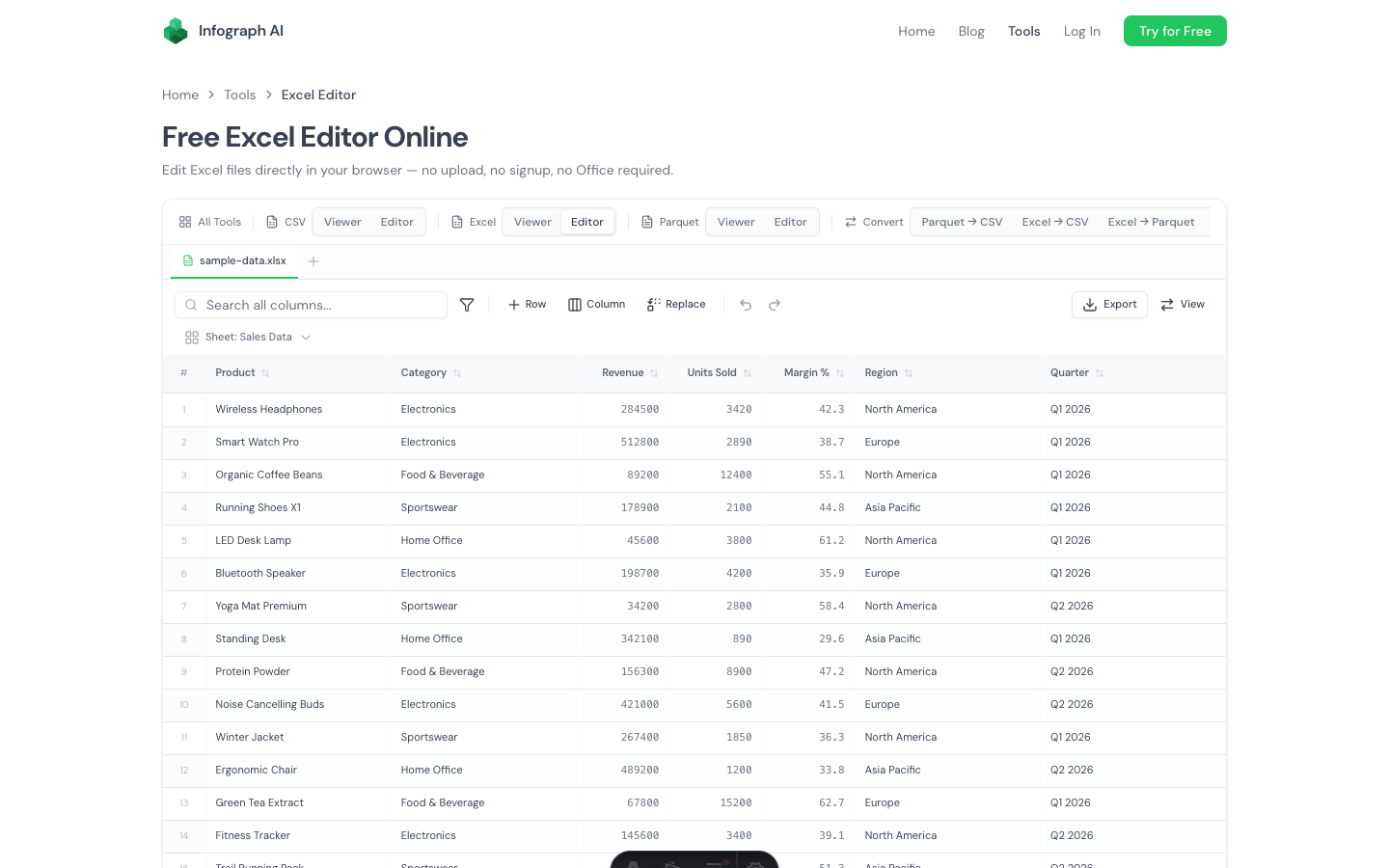
- Inline cell editing — double-click any cell to change its value
- Add and delete rows and columns from the toolbar
- Rename columns by editing headers directly
- Find and replace — supports plain text and regex, with case-sensitive matching
- Undo/redo — up to 50 levels of history
- Multi-sheet editing — switch between sheets and edit data from any part of the workbook
- Unsaved changes warning — prevents you from accidentally closing the tab
When you’re done, export to CSV, JSON, Parquet, or Excel. Everything stays local — no cloud sync, no account needed.
How It Works Under the Hood
Both tools combine DuckDB compiled to WebAssembly with SheetJS for Excel parsing. When you drop a file, SheetJS reads the Excel binary format locally, then DuckDB creates an in-memory table for fast querying.
Sorting a column is an ORDER BY query. Filtering is a WHERE clause. This is why it handles large spreadsheets that make desktop Excel sluggish — you get database-grade performance in a browser tab.
Your data never hits a server. There’s no upload endpoint, no API call, no tracking pixel watching your file contents. Open your browser’s network tab while using it — zero data leaves your machine.
When to Use This Instead of Desktop Excel
You don’t have Office installed. You’re on a personal laptop, a Chromebook, a Linux machine, or a work computer where IT hasn’t provisioned Office. You just need to see what’s in the file.
You don’t want to upload sensitive data. Financial reports, payroll spreadsheets, customer lists, healthcare data — anything you’d rather not send to Google Sheets or a random SaaS tool. Since the file never leaves your browser, there’s nothing to worry about.
The spreadsheet is too large. Desktop Excel slows to a crawl with large workbooks. This viewer uses virtual scrolling and database-level query performance, so it stays responsive with hundreds of thousands of rows.
You need a quick edit without the overhead. Fix a few values, delete some rows, rename a column, export. No waiting for Excel to boot up, no “compatibility mode” dialogs, no auto-recovery prompts.
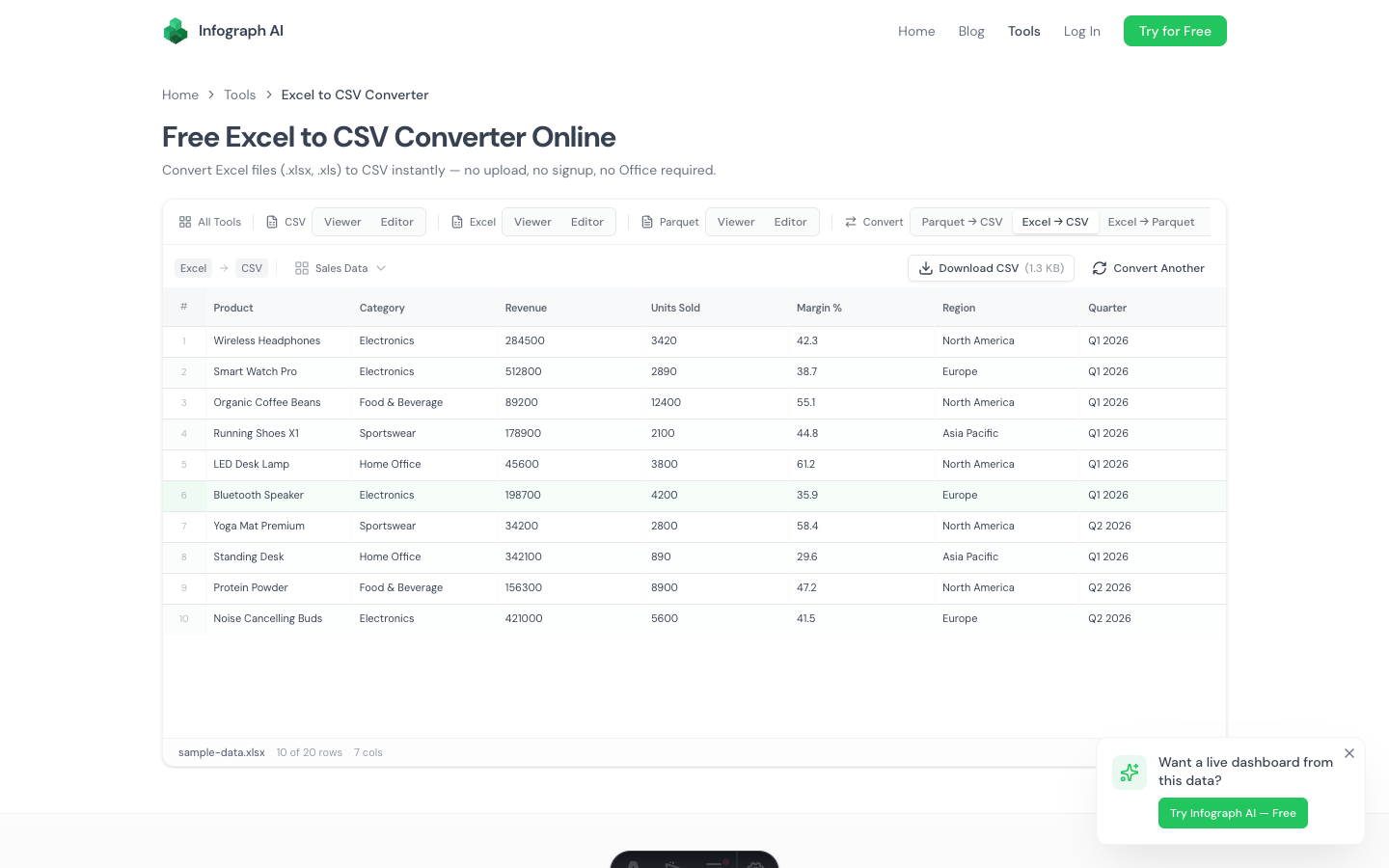
You need to convert Excel to another format. Want CSV? Parquet? JSON? The export feature handles it. You can also use our dedicated Excel to CSV converter or Excel to Parquet converter for conversion-focused workflows.
Multi-Sheet Support
One thing that sets this apart from many online Excel tools: it handles multi-sheet workbooks properly. When you open a workbook with multiple sheets, a dropdown appears in the toolbar. Select any sheet and the data grid updates immediately.
This matters because real-world Excel files almost always have multiple sheets — summary tabs, raw data tabs, lookup tables, metadata. Being able to navigate between them without losing context is table stakes for a useful Excel viewer.
What It Doesn’t Do
This isn’t a full spreadsheet replacement. No formulas, no pivot tables, no charts, no conditional formatting. If you need =VLOOKUP or sparklines, you still want Excel or Google Sheets.
It also doesn’t preserve cell formatting. Bold text, colored cells, merged cells — those are stripped when the data is loaded into the grid. What you see is the raw data values, which is usually what you want when inspecting or editing a file.
What it is: the fastest way to open, inspect, and lightly edit an Excel file without installing anything or trusting a third party with your data.
Try It
Pick whichever fits:
- Excel Viewer — open and explore Excel files, read-only
- Excel Editor — open, edit, and export Excel files
Drop a .xlsx or .xls file and see for yourself.