CSV is the default export format for most tools. But plenty of workflows need tab-separated values instead — bioinformatics pipelines, Unix text processing, database imports that choke on commas inside fields.
Converting between the two usually means a quick script: sed, awk, or a few lines of Python. Simple enough if you’re comfortable in a terminal. Less simple if you just want the file converted without writing code.
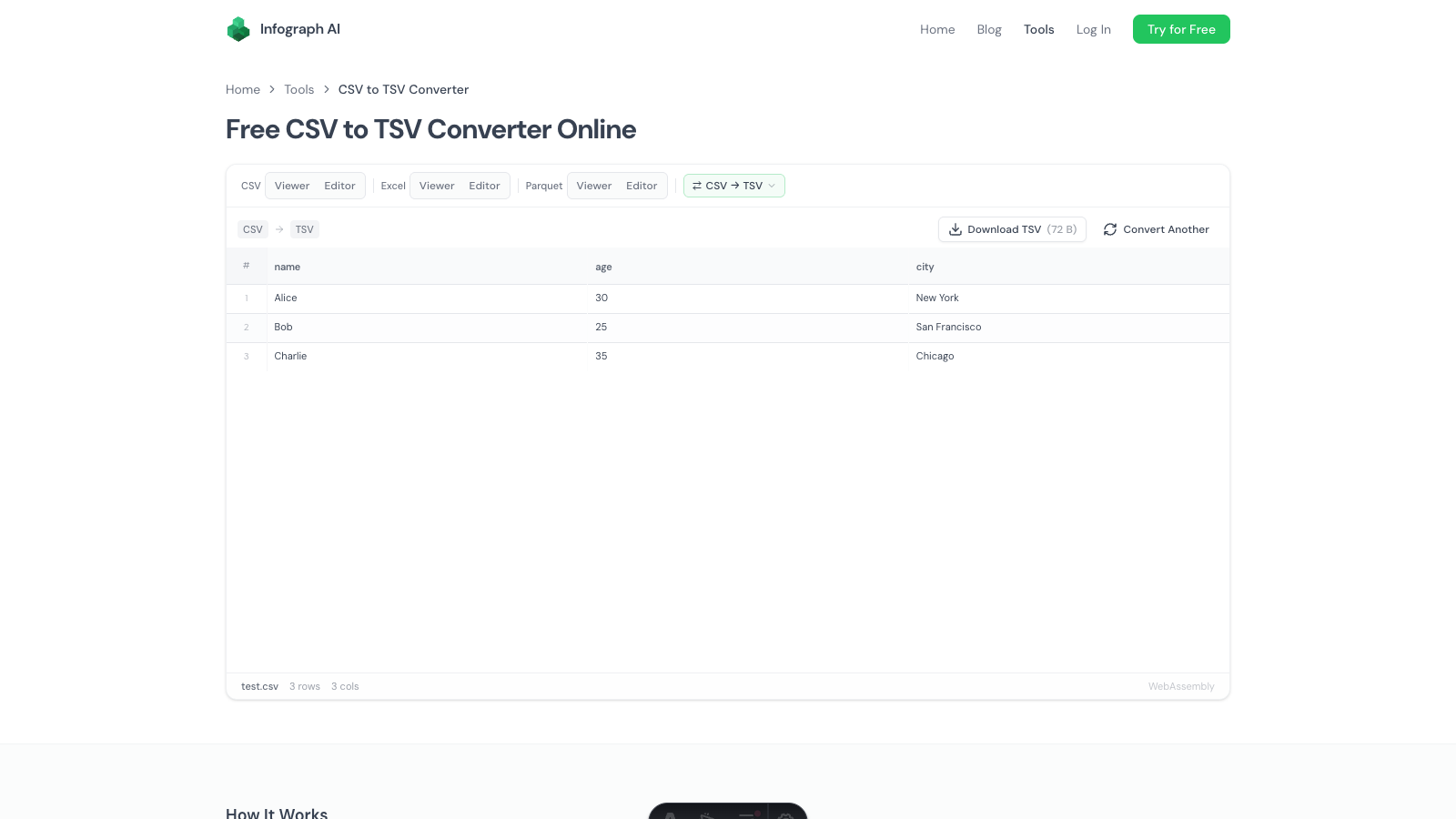
We built a free CSV to TSV converter that handles this in your browser. Drop a CSV, download a TSV file with tab delimiters. No Python, no command line, no upload.
How It Works
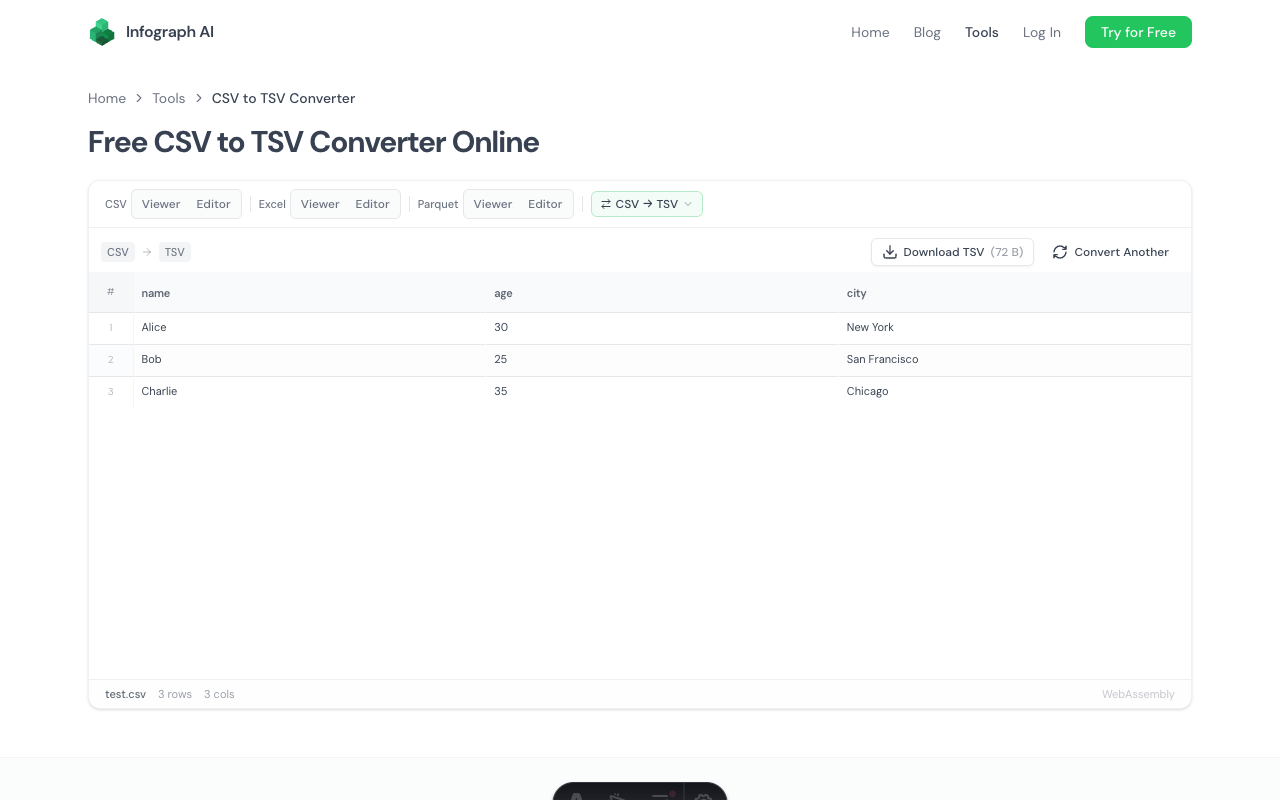
- Drop your CSV file onto the page (or click to browse)
- Preview the data in a table to verify it looks correct
- Download as TSV with tab-separated columns and preserved headers
The conversion runs locally using a WebAssembly engine. Your file never leaves your browser — nothing is uploaded to any server.
Why TSV Instead of CSV?
Both formats store tabular data as plain text. The difference is one character: commas versus tabs. That one character matters more than you’d think.
Commas appear in data. Addresses, descriptions, product names — commas are everywhere in real-world text. CSV handles this with quoting rules (wrap the field in double quotes), but not every parser implements quoting correctly. TSV sidesteps the issue because tabs almost never appear inside data values.
Bioinformatics expects TSV. Genomics tools like BEDTools, SAMtools, and most NCBI formats use tab-delimited data. If you’re working with gene expression data, variant call formats, or annotation files, TSV is the standard.
Unix tools prefer tabs. cut, sort, join, and awk all default to tab delimiters. Working with TSV means these tools work out of the box without specifying a custom delimiter.
Readability. Open a TSV file in a text editor and columns align naturally because tabs create consistent spacing. CSV files with varying field lengths look jumbled.
Delimiter Auto-Detection
The converter isn’t limited to standard comma-separated files. The WebAssembly engine auto-detects:
- Commas (
.csv) - Semicolons (common in European CSV exports)
- Pipes (common in database exports)
- Tabs (if you need to re-export an existing TSV)
Drop any delimited text file and the converter figures out the separator, then outputs clean TSV with tab delimiters.
Handling Edge Cases
A naive find-and-replace (swap commas for tabs) breaks on quoted fields, embedded commas, and multiline values. This converter uses DuckDB’s CSV parser — the same engine used by data teams — which handles:
- Quoted fields containing commas, newlines, or other special characters
- Escaped quotes inside quoted fields
- Mixed line endings (Windows CRLF, Unix LF)
- Fields containing tab characters (automatically quoted in the output)
The result is a correctly formatted TSV file, not a mangled text replacement.
When to Use This
Preparing data for bioinformatics tools. If a pipeline expects TSV input and your data comes from a CSV export, this converter handles the format change without scripting.
Feeding Unix pipelines. Working with cut -f2, sort -t$'\t', or awk on CSV data requires specifying the delimiter every time. Convert to TSV once and use the defaults.
Importing into databases. Some database import tools (especially older ones) handle TSV more reliably than CSV because there’s no ambiguity about field boundaries.
Sharing data with collaborators. If your team works with TSV and your source data is CSV, this converter bridges the gap without asking anyone to install Python or learn pandas.
Converting Back
Need to go the other direction? The TSV to CSV converter takes tab-separated files and outputs standard comma-separated CSV. Same browser-based approach, same privacy guarantees.
Related Tools
- TSV to CSV Converter — convert tab-separated files back to CSV
- CSV to Parquet Converter — convert CSV to columnar Parquet format
- CSV Viewer — view CSV files with sorting, filtering, and search
- CSV Editor — edit CSV data directly in your browser
Try It
Drop a CSV and download the TSV file. Tab-delimited output, preserved headers, zero upload.